On this page
File Collaboration
Edits made on the platform and on your computer save in different places. A local file with the same name does not automatically upload back to the platform.
Check where the file opens
Reading and editing files require their respective permissions. Spreadsheets are read-only on the web. To edit one, use a desktop view that supports editing or download it and use a local application.
See Office Editing and Saving for format and client restrictions.
- Find the file in Library or on a chat file card, and check its name.
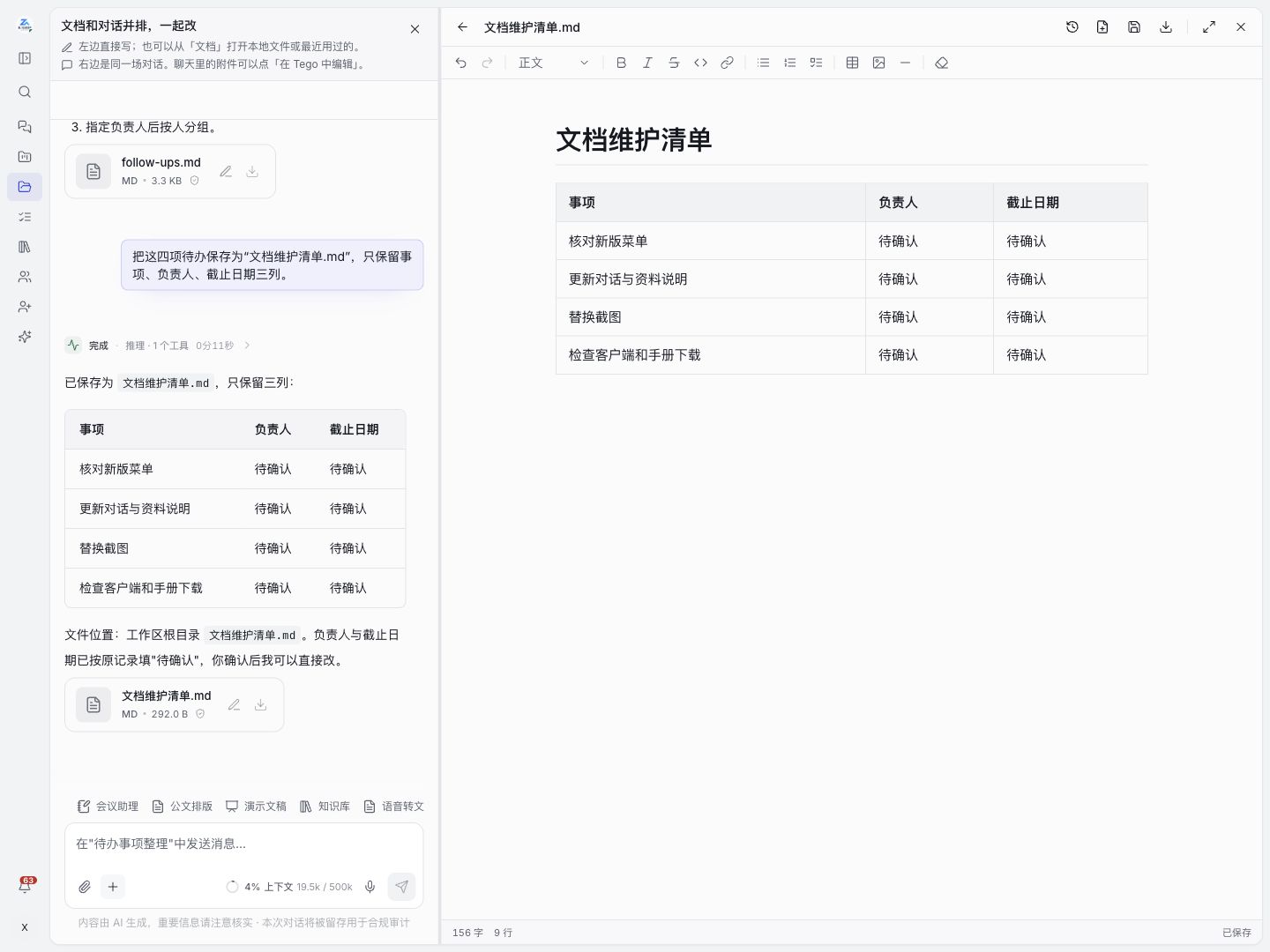
- If the card shows Edit in TeGo, select it to open the editor. For a local copy, click Download on the card. Check the contents and version after opening.
Specify a targeted edit
Use a heading, table column, page number, or selection to identify the content to change, for example:
Split “Download checks” into two items, one for the client and one for the manual. Keep the other items and table structure unchanged.
Keep the current version before editing an important file. After editing, check the parts that were affected, such as formulas, pagination, fonts, charts, and comments.
Save before delivering
- After the editor shows that saving is complete, close and reopen the file.
- Download the file and open it in the software the recipient uses. Compare its contents with the version on the platform.
If saving fails, keep the current content and avoid refreshing. When the page supports Download or Save As, keep a copy of the edits before addressing permissions, connectivity, or conflicts.