On this page
Product Overview
The TeGo Digital Employee Collaboration Platform lets teams assign work to digital employees, follow execution, and review results. Members start work in Chat and continue it in Projects. Administrators configure the models, tools, and materials a digital employee can use and decide which members can access it.
From Request to File Delivery
Open Chat in the left sidebar. Choose a digital employee you have permission to use from Select Employee in the upper left, then click New Topic in the topic pane. Enter your request, attach documents, spreadsheets, or images, and select any skills needed for the work. Keep follow-up materials and revisions in the same topic.
For example, send three preparation tasks, ask for a list organized by item, owner, and deadline condition, and request a Markdown file. When the digital employee replies, open the file card to check the contents. You can also open the file next to the chat and edit it directly, or ask the digital employee to revise a specific section, table, or selection.
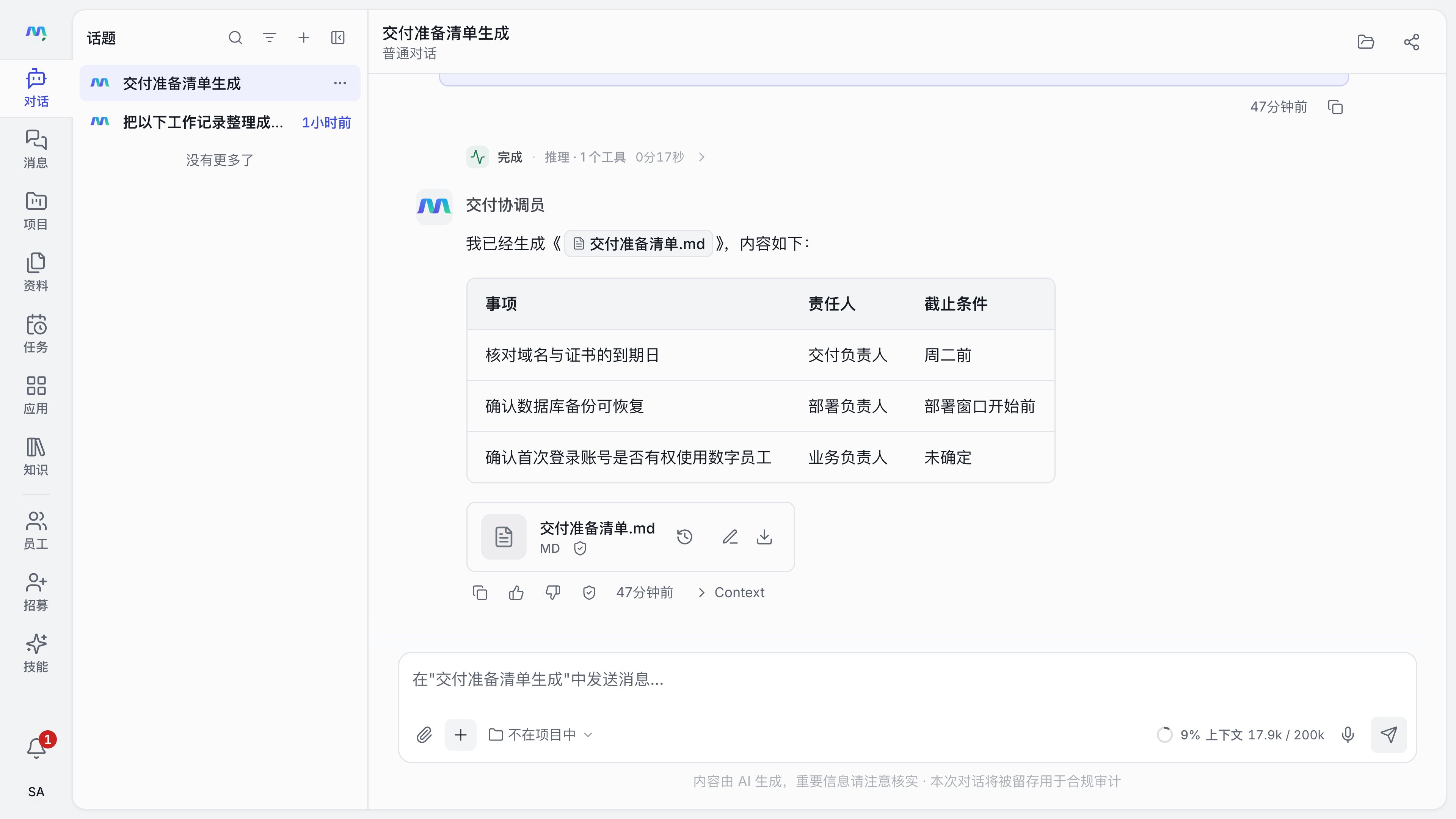
Chat and Deliverables · AI Workspace · Files and Office Editing
Continue Work in a Project
Personal topics suit individual work. For handoffs between team members, keep objectives, items, reference files, drafts, and deliverables in a single project. Members can pick up existing materials with the digital employees they have access to or ask a digital employee to act on comments.
Digital employees read and write with the requesting member's project permissions. Project activity records who delegated the work, which digital employee performed it, and what changed. Files can distinguish working versions from final versions. Permission holders can resolve conflicts, restore previous versions, or undo a submission.
For work that recurs on a schedule, use Scheduled Tasks. To compile delivery progress each day, for example, specify when it should run, the digital employee, the source materials, and where results should go. Check the run history to confirm each execution.
Project Collaboration · Scheduled Tasks
Recruit and Configure Digital Employees
A digital employee is a running instance that accepts work and delivers results. In Recruitment, use a digital employee template to reuse a role definition and its configured capabilities, create a digital employee from scratch, or import one from a file. Each digital employee runs and is maintained independently after creation.
An Agent executes the work. A digital employee can have multiple Agents, each responsible for work such as research, drafting, or review. A skill provides a method an Agent can invoke. Select a skill for one chat or install it on a digital employee for future use.
Digital employee templates capture reusable role definitions. Configuration profiles manage model and runtime settings. Updating a digital employee template does not overwrite digital employees already created. A published configuration profile still needs to be previewed and rolled out to the intended existing digital employees.
Digital Employee Configuration · Template Marketplace · Multi-Agent Collaboration · Skill Workshop · Models and Services
Search Knowledge and Connect Apps and Systems
Attach materials to the current request. Store policies, product information, or business standards that you need to look up regularly in a personal or team knowledge base. A digital employee's access depends on the execution identity, knowledge base permissions, and document status.
Open Apps in the left sidebar to access authorized mini apps, enterprise apps, and connectors. Digital employees call external services using configured connectors and their permissions. For business systems, see the open interface documentation.
Memory and Knowledge · File and Web Operations · Business System Integration · Use Apps
Manage Permissions and Trace Tasks
Administrators can manage access by person, role, team, or resource. When giving a member access to chat with a digital employee, choose separately whether to allow device connections. Projects, knowledge bases, and external services use their respective authorization rules.
Different rules govern resource publication and installation, message inputs and outputs, and operations requiring human confirmation. Check chat activity for task progress. Use operation logs to see changes to assets or permissions. Use the Audit Center to identify who started a task and trace its steps and outputs.
Auditors can review alerts, sample tasks, open cases, and preserve evidence within their access scope. Summaries, full content, and policy management require separate permissions. The system also logs access to and exports of full content.
Permissions and Data Security · Publication Review · Execution Auditing · Runtime Management
Choose a Client or Channel
The web, desktop, and mobile clients have different entry points. Local folders, desktop nodes, and browser extensions must be connected and authorized on the applicable client. External messaging channels require configuration on the digital employee first. For private deployment, start with the POC Guide.
Access Across Clients · Meetings and Voice · POC Guide
Get Started · Features · Operations Manual · Product Reference · Deployment and Operations
Our Vision
Every enterprise has a team of digital employees built around real roles, working alongside people, and improving continuously.
Our Values
| Value | How we put it into practice |
|---|---|
| Learn by doing | Start with our own work and judge by real practice. |
| Match words with action | Speak to what we can do and deliver on what we promise. |
| Build on trust | Work openly and earn trust through our actions. |
| Focus on value | Aim for results and measure their value. |