On this page
Project Collaboration
Team members use their digital employees to maintain project materials, drafts, and deliverables and continue working from existing versions.
Use Projects in the left sidebar when work needs a series of handoffs. For a quarterly review, for example, keep data notes, open questions, and final files together. The menu appears after your organization enables Projects. For one-off questions, use Chat.
Project Files
A project keeps objectives, working rules, and files together. Members choose digital employees they can use to read and edit project materials, and write outputs back to project files.
The workbench brings together work items, decisions, meetings, and recent deliverables. Items and decisions are stored as files. The system generates lists and indexes from these records, and the team can continue from the original entries.
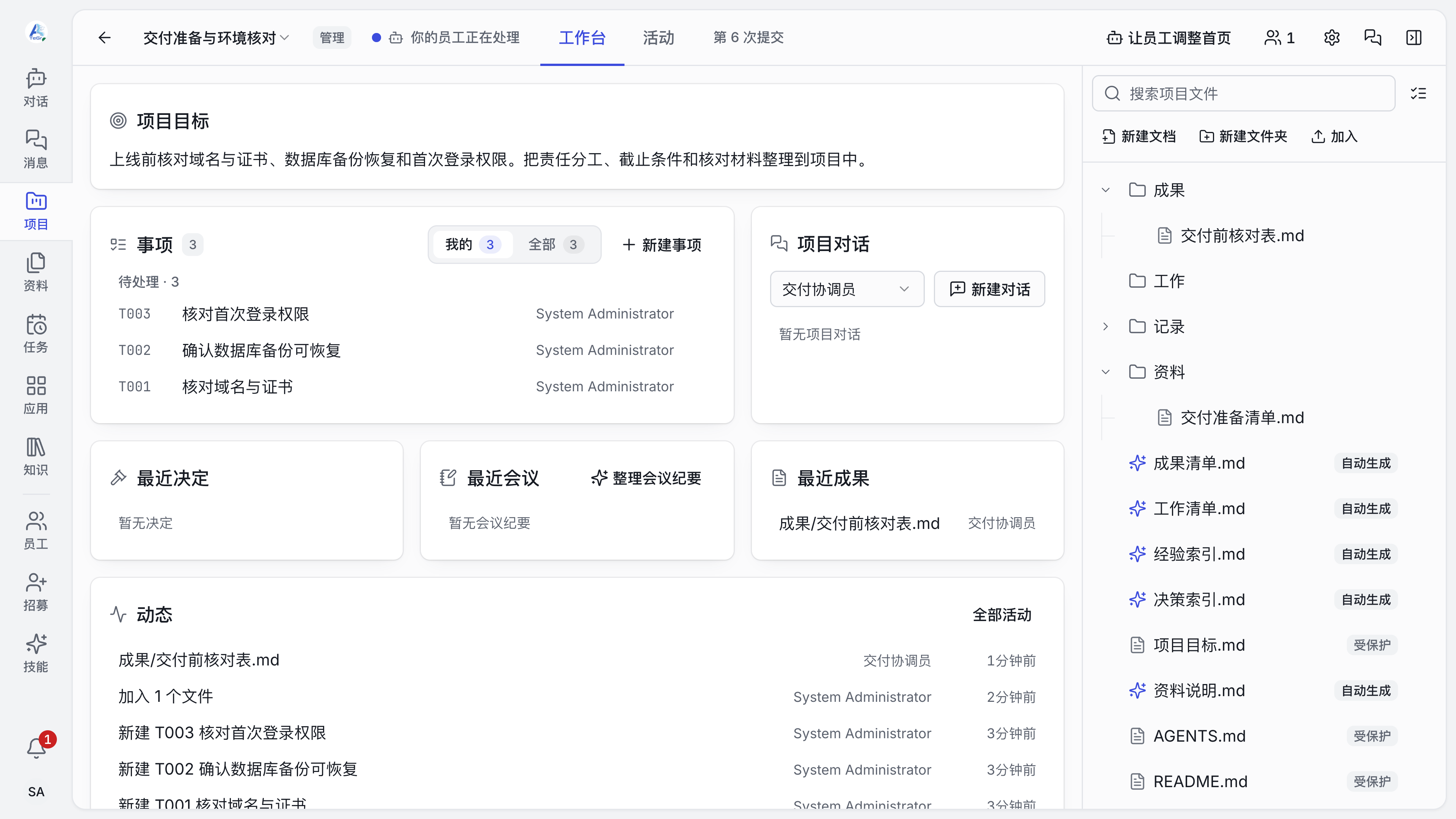
When assigning work, identify the material by item number, title, or file name, and ask for the result to be saved to the project folder. Add any file created in a personal topic to the project before members can access it under project permissions.
Work with Digital Employees
Members with edit permission can comment on a file and use Assign to Assistant to have a digital employee address the comment. From a submission, members can choose Continue with Assistant and add follow-up requirements.
The project distinguishes human edits from digital employee edits. Once a chat is shared, colleagues can add comments. The initiator decides which to include now, save for the next round, or skip.
Version Management
Project activity records the submitter, delegation relationship, digital employee, and file changes. Members can inspect added, modified, and deleted files and their versions.
When a write causes a version conflict, the system either preserves a conflict copy or prompts for resolution, depending on the operation. Compare changes before merging. Members with the relevant management permission can restore at different levels:
| Restore method | Effect |
|---|---|
| Single-file restore | Restore a file to the selected historical version. |
| Undo submission | Undo one submission. The system skips files since modified or whose original locations are occupied and lists the reasons. |
| Project restore | Restore files to the selected project version, including deleting files added after it. Review the affected scope before proceeding. |
A restore that changes files creates a new submission. Existing history remains available.
Track Progress
The project workbench collects updates since the last visit. It prioritizes relevant items, file changes, and conflicts and links to related materials.
The Projects category in the message center groups assignments, handoffs, and replies to comments. Members can open the related file or conversation.
The project header indicates when a digital employee is working. Check actual progress in the work item and submission result. Members can open only conversations they are allowed to read.
Finalize and Deliver
Members with finalization permission can mark a specific version of a file as final. The final version stays available separately while the team edits the current file. Marking it final does not replace organizational approval.
Project export offers Current Version and Final Version. The current export contains the latest files and generated lists. The final export contains only files marked final, using each file's final version.
Before delivery, check the marked version in Info and History. Select the appropriate scope under Project Settings → Files and Output. To inspect a particular change, open its submission in Activity and compare the files.
Collaboration Permissions
Digital employees read and write under the delegating member's current project permissions. Members with View can read and start chats, but cannot edit files or add comments. Managing members, finalizing, exporting, and restoring each have separate permissions.
Project chats are private to the initiator by default. The initiator decides whether to share them. Adding a personal file creates a project copy, leaving the original permissions unchanged. Content written to project files is shared under project permissions.