On this page
Chat and Deliverables
Select a digital employee in Chat in the left sidebar. Send a work request, follow execution, and open the deliverable. Continue in the same topic when a file needs several revisions.
Describe the Task and Materials
Open Select Employee in the upper left and choose a digital employee you can use. Then click New Topic in the topic pane. State the goal, materials, scope, and output format. For example, upload meeting notes and ask to extract action items, keep owners and dates from the source, and flag missing details for confirmation.
Use Add Attachment to supply files. Wait for upload and conversion to finish before sending. Start a new topic if the goal, material scope, or confidentiality requirements change. Use topic search to find earlier work.
To use a consistent method, select a skill for this request. To check a policy source, specify a search scope under Knowledge Base Requirements. Neither action grants additional permissions.
Check Progress and Results
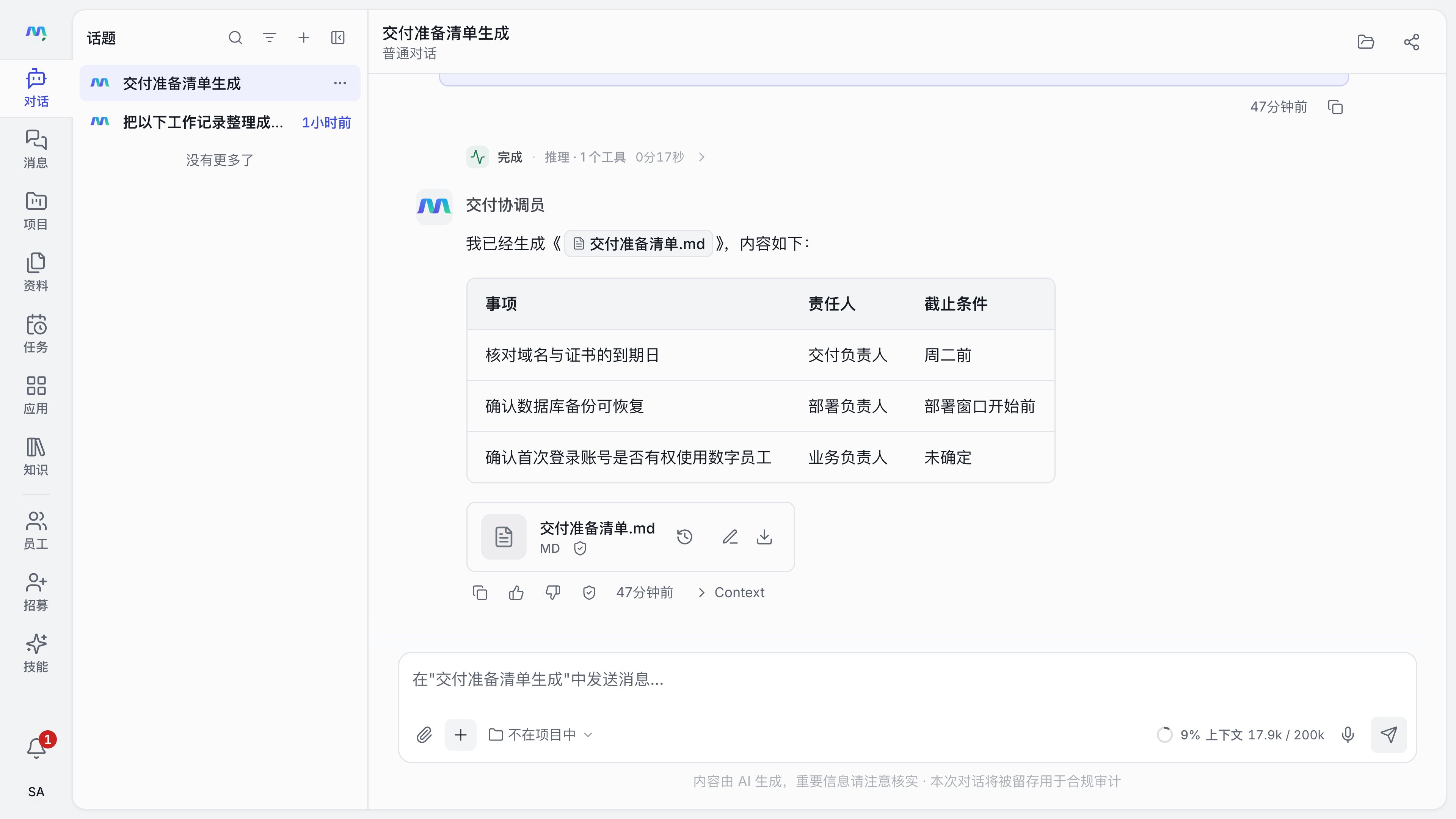
Expand message activity to see tool calls, errors, and items awaiting confirmation. For Awaiting Confirmation, check the action, target, and scope of impact. Stopping a run does not undo files already written or messages already sent.
Open the file card to check content and format. For revisions, point to the relevant section, table, or data in the same topic. For delivery, download the file and open it in the recipient's software.
See Files and Office Editing for saving and versioning, and Use Chat for input and error handling.