On this page
Chat
In “Chat”, select a digital employee, send a request, and review replies and deliverables. If none is available, check scope and authorization in Digital Employee Usage Permissions.
Start a conversation
- Click “Select Employee” or the current digital employee's name. Search for and select the digital employee responsible for the work.
- Click the plus at the top of the “Topics” pane. State the goal, materials, and output format, then send your request.
Continue in the original topic to revise the same deliverable. Start a new topic if the goal, the scope of materials, or confidentiality requirements change.
Note
The composer, attachments, and voice input may be unavailable until a digital employee is selected. Switching employees changes the available skills, models, workspace, and knowledge scope. Existing topics retain their own history.
Add attachments
- Click the composer paperclip labeled “Add attachment” and select a local file. See the file picker for supported formats and size limits.
- Wait for the upload and conversion to finish. Tell the digital employee how to use the file, then click “Send”. Seeing a file name alone does not mean the upload finished.
For a failed attachment, check the reason on the card and click “Retry”. If you picked the wrong file, click “Remove” and attach the correct one. Provide a readable copy if the format or content is unsupported. Images and scans require compatible processing; selecting a file does not expand access permissions.
Chats assigned to a digital employee support ZIP, RAR, 7z, and TAR uploads. Mobile supports ZIP, RAR, and 7z. Specify which files to read. If an archive contains encrypted content, provide an authorized, readable version.
Reading scanned PDFs requires a working knowledge base OCR model configured by the organization. When pages are reported unreadable or unrecognized, split the file or supply a clearer copy, then check the cited sources.
Inspect activity
Expand the activity or tool history in a message to see the current step, pending confirmations, errors, and outputs. If work stops progressing, use the activity message to supply missing materials or handle authorization.
If the call is waiting for confirmation, open it and verify the action, parameters, and impact before responding. Leaving the page does not stop a running task. Return to its topic to see status and deliverables.
After the reply completes, check sources, results, and files. Open any file card rather than relying on a claim of completion in the reply.
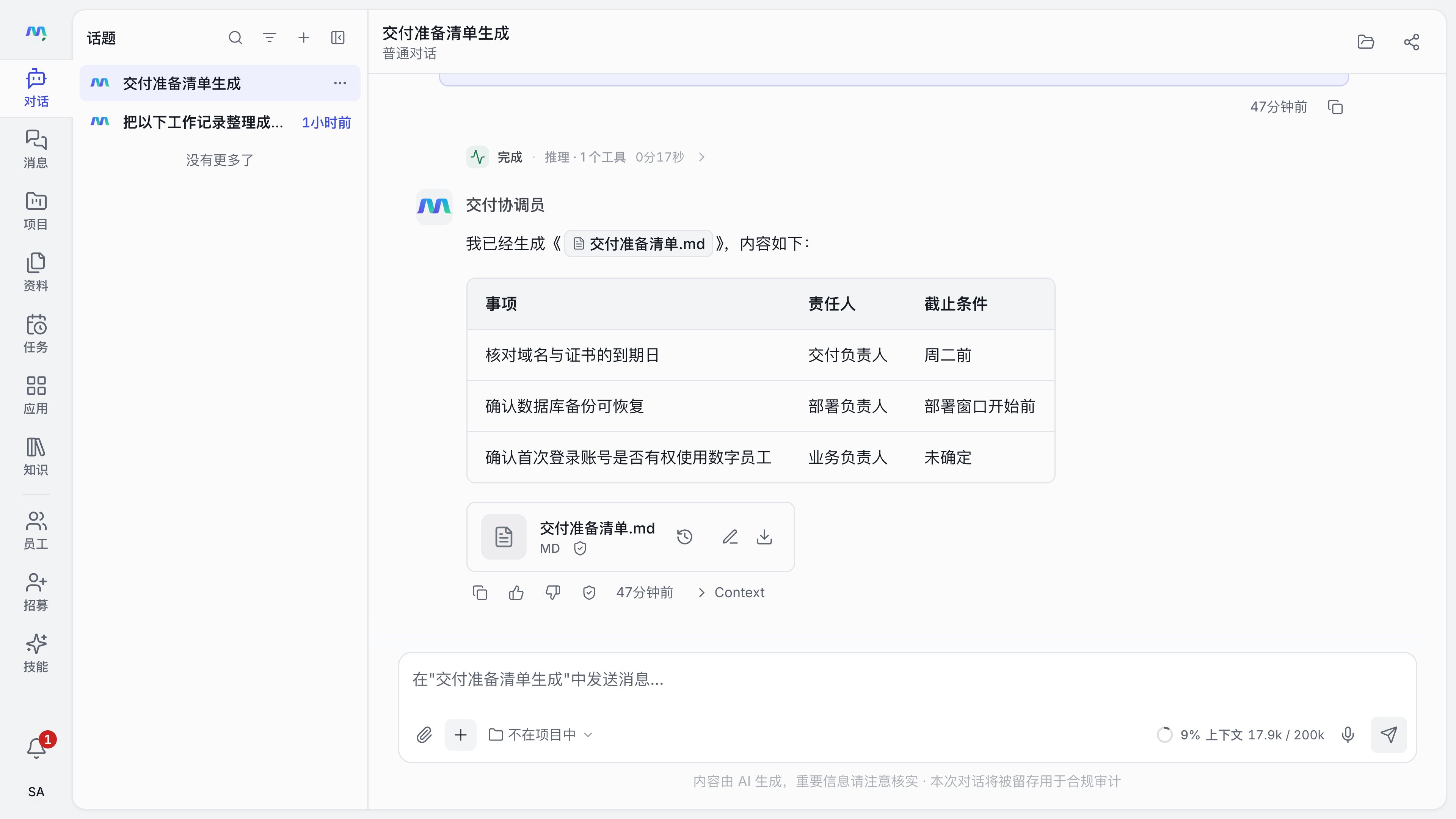
If a file does not open, try opening it again from “Library”. If the problem persists, record the file card link, file name, and error. When reporting a runtime issue, include its time, digital employee, topic, and exact error. Remove sensitive content from attachments and logs.
Stopping does not undo files already written or messages already sent. Check existing results before stopping or retrying.
Find and read previous topics
In topic search, enter a title or keyword, filter by topic type, and open the original topic to continue. If the topic is missing, confirm the selected digital employee and account.
Use “Favorite” in a topic's menu to find it again under “Favorites” in the topic list or search page. Removing the favorite does not delete messages.
Scheduled task result topics may only receive messages. If the composer is read-only, start a regular topic to discuss the result.
Write a clear request
State the goal, materials, constraints, and expected result. For example:
Extract action items from the attached meeting minutes. Preserve owners and dates, mark missing information as to be confirmed, and return a table with citations to the source.
If the digital employee asks about materials or scope, provide the relevant facts. A request need not include every technical parameter. Do not present unsupported amounts, people, approvals, or completion statuses as facts.
Select a desktop folder
Local file access requires a device connection and folder authorization. If the desktop client shows a folder picker, choose an authorized folder and specify what can be read or saved for the task. Typing a local path in a web conversation does not grant access to the folder.
Finish active file operations before changing folders. Clearing recent folders does not delete their contents.
Select plugins, skills, and tools
Click “Add” (plus) in the composer and choose what the request needs:
- “Skills”: specify a method for this request without installing it first.
- “Plugins”: select a built-in plugin provided by the current digital employee for this request. This does not install or enable plugins.
- “Tools”: toggle whether reasoning and tool calls are shown. This does not add or enable a tool service.
- “Knowledge → Select knowledge bases”: the digital employee must have an enabled knowledge base connector, and the current account must have access to the selected bases. Choosing a base does not enable the connector.
Note
If a custom skill is missing, have the maintainer check publication and visibility in “My creations”. Verify skill and tool usage in the activity for the current message. Confirm the target and authorization scope before sending anything externally, writing data, or running commands.
For ongoing setup, see Skills, App and Plugin Entry Points, and MCP in the Employee Console.
If the selected skill did not run, check activity for loading or invocation errors. For installed skill status, see Manage Installed Skills.
For external system access by a digital employee, see Authorize a Digital Employee to Use a Connector.
Use Quick Inputs
From “Add”, select a Quick Input provided by the current digital employee, then fill in the materials, date range, and deliverable. A Quick Input does not supply missing files, credentials, or permissions.
Use plan mode
Enable plan mode in the composer if available. State the goal and what counts as completion. After the digital employee lists the steps, materials, external actions, and outputs, confirm or request changes before execution.
A plan does not replace organization approval or authorization for a specific action.
Continue chatting alongside a document
Open a supported document from the Library or a delivered file. In the side-by-side chat, specify what to edit by heading, page number, table, or selection. Review and save the result.
Spreadsheet preview on web and spreadsheet editing on desktop differ. See Office Editing.
Workbench areas
| Area | Contents |
|---|---|
| Work | Chat, Messages, Projects, Library, Tasks, Apps, and Knowledge. Projects and some other entries depend on organization settings. |
| Team | Employees, Recruit, and Skills. “Employees” refers to digital employees. |
| Apps | Mini apps, authorized enterprise apps, and connectors. |
| Topics | Search, topic types, and new topics. |
| Conversation | Messages and activity. |
For rules and statuses, see Chat.