On this page
Scheduled Tasks
Use “Tasks” in the sidebar to schedule one-time or recurring work for the current digital employee and review each run.
Create a scheduled task
Select a digital employee that can complete the work. Confirm that chat and any required tools are available. If the page reports that the feature is unavailable, have the maintainer check connectivity and runtime status in the Employee Console.
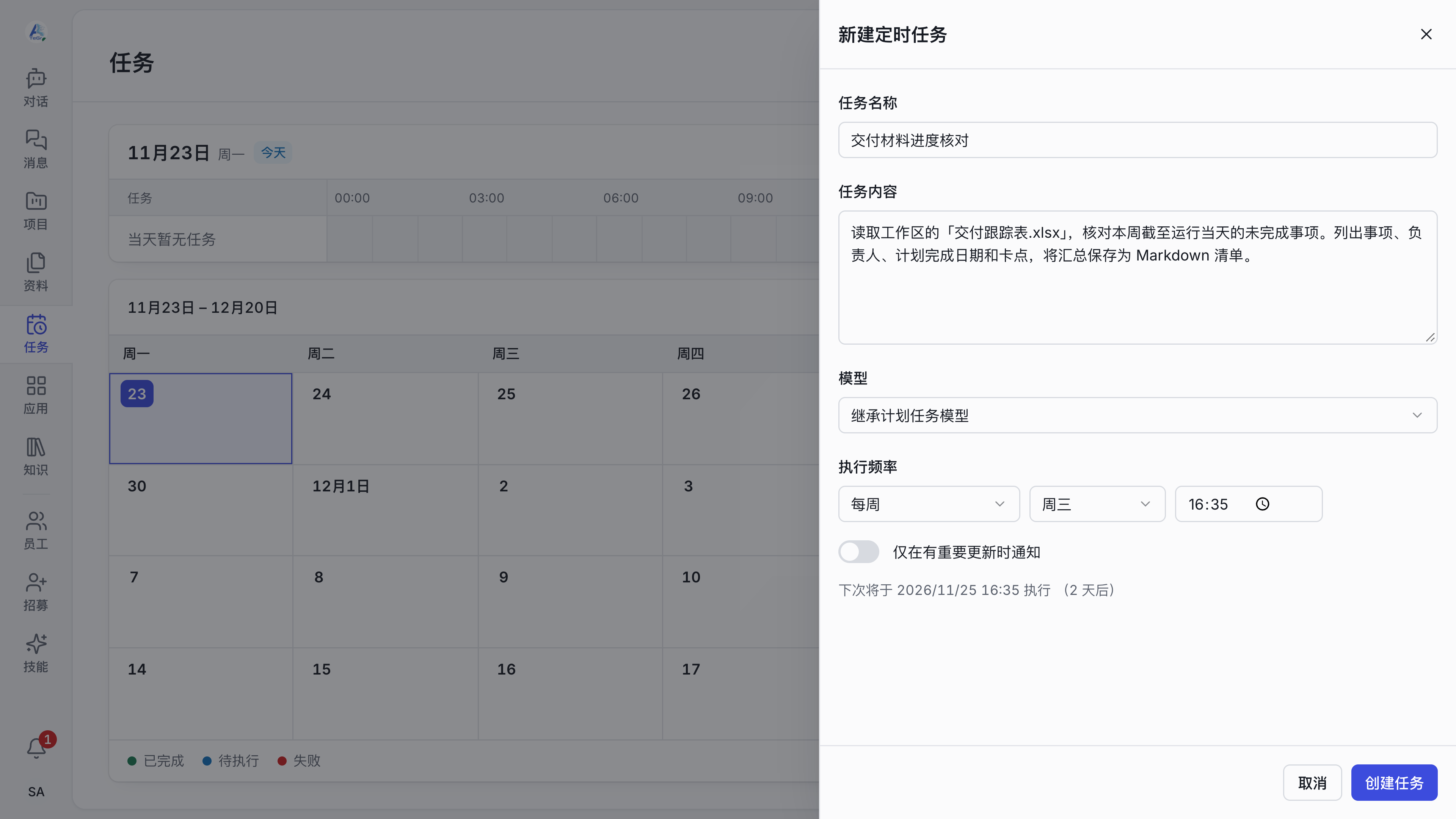
- Open “Tasks” in the sidebar and click “New task” at the upper right. Enter the task name and instructions in the new scheduled task panel. Specify material locations, data dates, and deliverable requirements. Do not rely on unsaved browser files or information provided only verbally.
- Select a model or keep the inherited scheduled-task model. See Model Selection for its source and precedence.
- For execution frequency, select daily, weekly, every few hours, every few minutes, once at a specific time, or a custom Cron schedule. Enter the corresponding time or expression.
- Enable notifications for important updates only if needed. Check the next run time at the bottom of the form and click “Create task”.
- Find the task on the calendar, open its details, and check the next run time. Use the run history in the details to review actual results.
Review activity and results
Select a task on the calendar or daily timeline. In the details, open its run history to see the start time, status, errors, and returned result. Open the output or result topic to check content, data date, attachments, and recipients.
A successful run does not establish that business conclusions or external delivery were verified.
If a run fails, use the reported error to check material access, model credentials, or tool credentials. Send the maintainer the task name, time, and exact error with credential values removed.
Edit, enable, or disable a scheduled task
Select the task to open its details, choose “Edit” at the upper right, change the instructions or schedule, and save. Check its next run time. If the model catalog cannot be read temporarily, keep the current model and edit the other fields.
Click “Pause” at the bottom of the details to stop future automatic runs. To resume, click “Enable” in the details, then check the next run time.
If a task did not run on time, check whether it is enabled and inspect its next run time. If the runtime connection is unhealthy, have a maintainer inspect scheduling.
To delete, use “Delete” at the upper right of the details. Check run history first and confirm the task is no longer needed. Before recreating it, look for an existing task with the same name to avoid duplicate scheduling.
Run a task now
Open the scheduled task details and click “Run now” at the bottom. Review this run in its run history and avoid triggering it repeatedly. If it sends information externally, writes data, or uses billable APIs, check the effect of a duplicate run first.
“Pause” prevents future automatic runs and does not cancel an active run. Use a stop or cancel action only if the run details offer it. Completed writes and sent messages are not reversed.
Read scheduled task notifications
Open a run from a message or result topic. Identify the record by digital employee, task name, and time. Topics that only receive notifications cannot be used for ordinary chat; start a regular topic to discuss the result.
Edit the task itself to change future instructions. A comment in the result topic does not modify the schedule.
If you receive duplicate results, search for schedules with the same name. Then check delivery settings and manual runs to distinguish duplicate runs from duplicate notifications.
Use the task board
Select a digital employee in “Tasks”. Use the four-week calendar to find a date and the daily timeline to see tasks scheduled that day. Click a task to open details and run history. Paused tasks and tasks with no next run appear under “Unscheduled”. Managers can create a task for a time selected on the calendar or timeline.
If a task is missing, check the digital employee and account, then clear search, time, and status filters.
| Entry point | When to use it | Scope |
|---|---|---|
| “Tasks” in the sidebar | Schedule work or review run results. | Scheduled tasks created by the current account for the selected digital employee. |
| Scheduled tasks in the employee console | Diagnose a digital employee's schedules and runs. | Administrators can review schedules from different users for that digital employee. Viewing as a user is read-only. |
| “Knowledge → Knowledge tasks” | Track file parsing, import, and indexing. | Knowledge processing, independent of scheduled tasks. |
For work that needs an owner, progress tracking, and ongoing follow-up, create a project item. Project items do not automatically create schedules.
Schedule status, individual run status, and file archiving are tracked separately. Changing a display status does not require another run.
Check knowledge tasks
In “Knowledge → Knowledge tasks”, search by file name and status. Open “View result” to inspect the diagnostic, then address the file, model, permission, or service issue. See Knowledge Center.
Before retrying, check for existing files or segments to avoid duplicate imports. See Knowledge Task Statuses for status definitions.
For all fields and statuses, see Scheduled Tasks.