On this page
Messages and Usage
Open “Messages” in the left sidebar to find conversations and pending items. Open “Message Center” at the bottom of the sidebar for notifications. Use the account menu to check usage.
Handle messages
- Open “Messages” in the sidebar. Select a conversation from the list or use the search box to find an existing message. If no conversation is open, select “Start a direct message”.
- For pending items, open “Pending”, check the request and its source, and handle the corresponding item.
- To review questions sent through Feishu, DingTalk, WeCom, or WeChat, open the archived conversation for the linked account. Archives are read-only. Return to the original channel to continue a direct conversation.
If channel messages are missing, check the linked account and target digital employee first. Linked direct messages are archived before the digital employee starts replying. The conversation retrieves new messages when it reconnects.
Read system notifications
- Click the bell at the bottom of the sidebar to open “Message Center”. Select a message in “Inbox” to open its details and mark it as read.
- If the details offer “View record”, “Open conversation”, “Open project”, or a similar action, open the relevant item to continue.
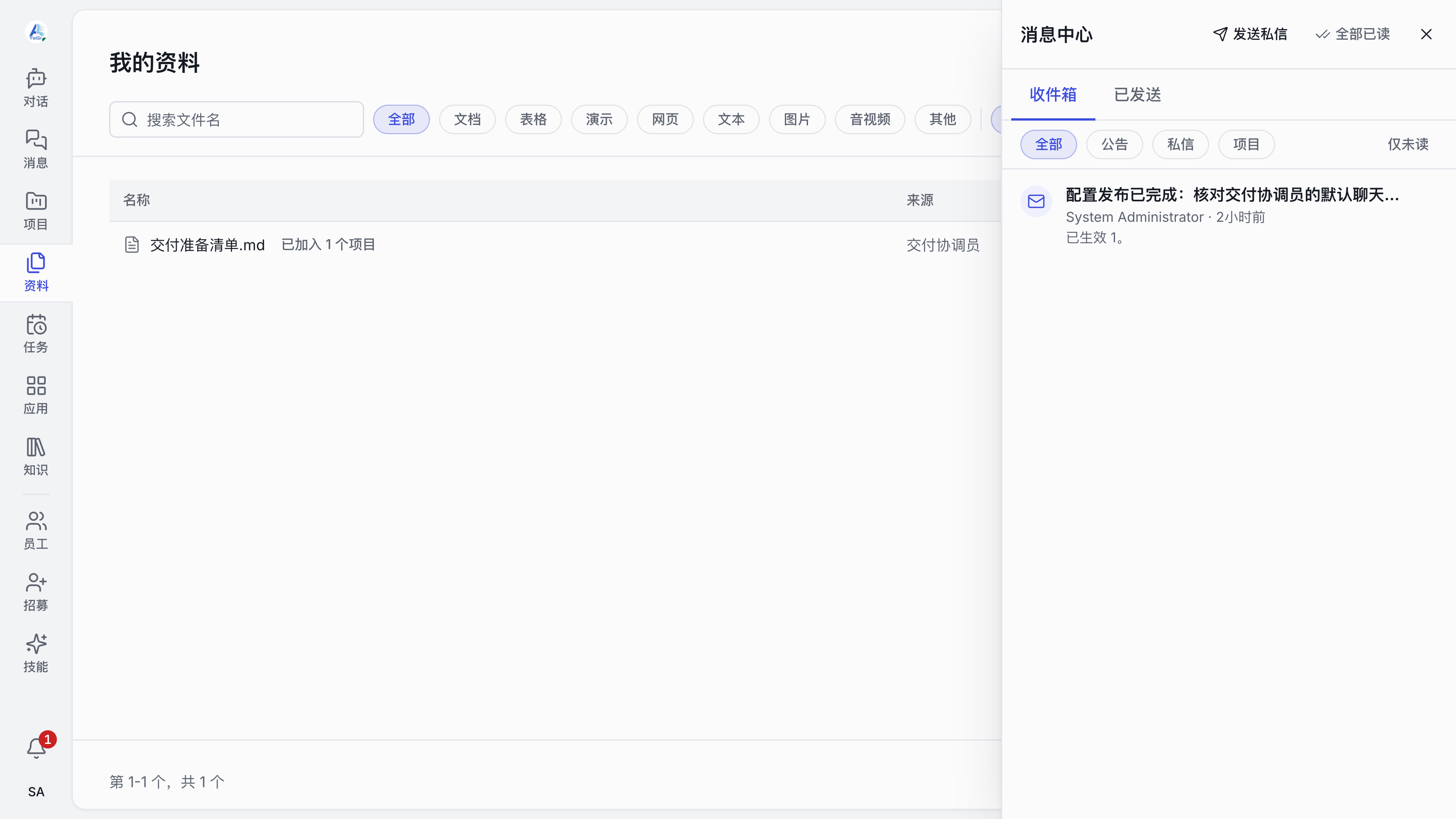
“Mark All Read” only changes notification status. It does not approve requests, cancel tasks, or confirm deliverables. If the linked item does not open, confirm the current account and organization and ask the resource owner about access.
Set up notifications
Desktop notifications require system permission. Web push also requires browser support and server configuration.
If the page indicates that the server is not configured, have an administrator complete the Web Push setup before turning on notifications.
- From “My account” at the lower left, go to “Settings → Configuration → Push notifications”. Authorize the desktop and web clients separately. On desktop, allow system notifications when prompted. On web, enable them under “Current browser”. If notifications are blocked, unblock them in system settings or the browser's site settings first.
- Under “Account defaults”, set the alert types, lock-screen visibility, quiet hours, and which digital employees can send alerts, then click “Save”.
- Click “Send test” and check that the device receives the notification.
If an alert does not arrive, look for its record in “Message Center”. If it is present, check device or browser permissions and account notification settings. If it is absent, check the recipient account and target channel first.
To configure outgoing email and chat channels, see Personal Connections.
Check usage
From “My account” at the lower left, select “Usage”, choose a time range, and review consumption by digital employee, model, or other dimensions available on the page.
If usage differs from expectations, first verify the account, time range, reporting dimension, and last refresh time. Send the relevant records to the operations team.
“Context” in the chat composer shows the current topic's context usage. Use the account menu for cumulative usage. Administrators can see organization totals under “Operations → Usage Analytics” in the admin console.
Memberships, plans, and quotas appear only when available in the deployment and permitted by the account. Use the relevant page's units and definitions for quotas, balances, consumption, and costs.
For rules, see Messages and Usage.