On this page
Library
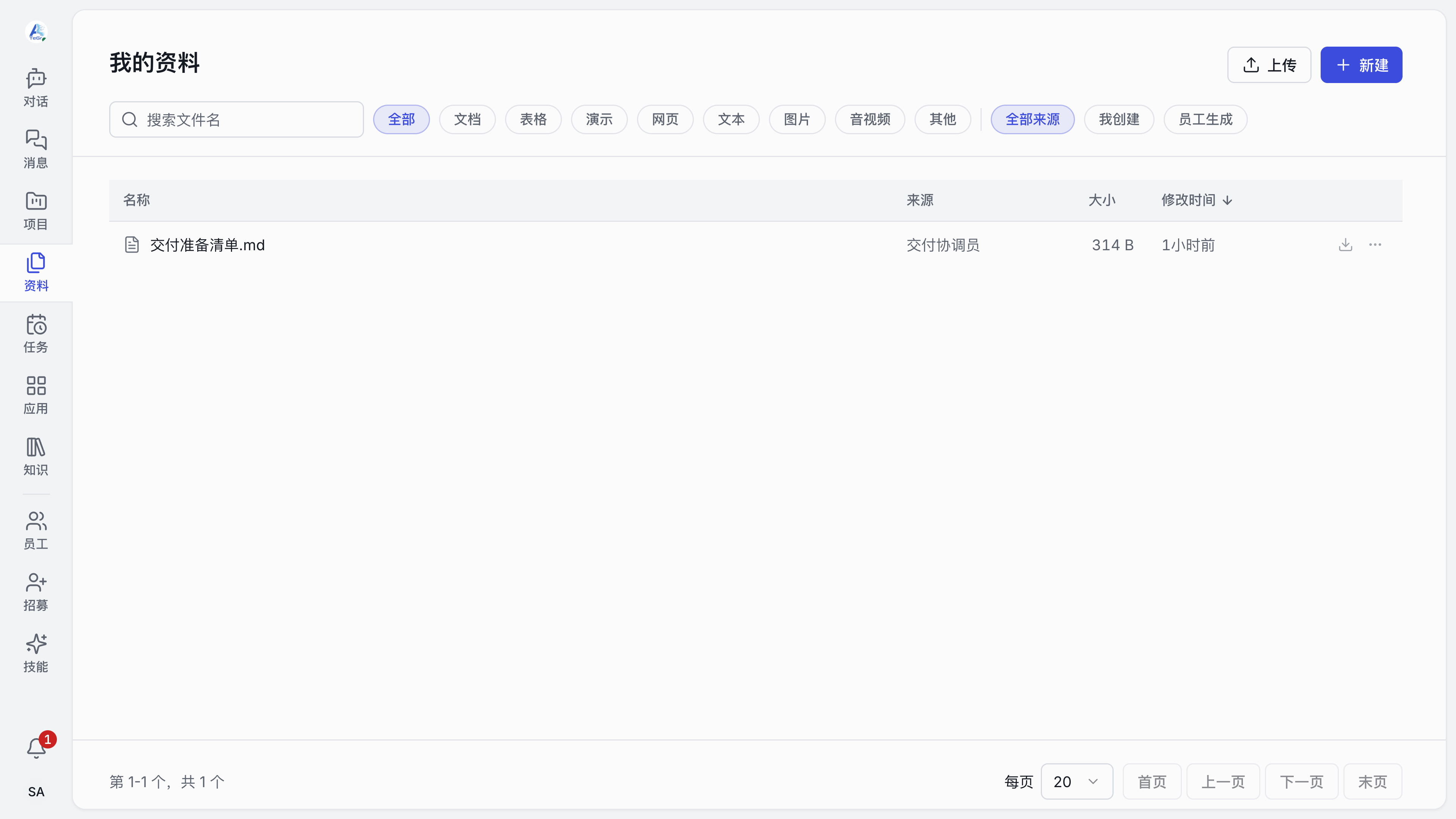
Open “Library” in the sidebar. Use “My Library” to find, upload, and open files.
Find files
Enter a name in the file search and narrow by type or source. If files have the same name, check their source, size, and last modified time before opening. If a file is missing from the Library, return to its file card in the original topic and check the current digital employee and account.
Topic deliverables, Library files, and local files may be stored in different places. Visibility in a list does not grant download or edit access.
Upload files
- In “My Library”, click “Upload” at the upper right and choose files. You can also drop files onto the page.
- Wait for the file to appear, then open it to verify its contents. If the queue reports an upload failure, click “Retry” for that item.
Empty files, executables, and files over the upload limit cannot be uploaded. Replace or reduce the file. Repeated attempts do not change these limits. “Ignore” only clears the failed item from the queue.
Every upload creates a separate Library item, even when the name matches an existing file. To update a file, open it, edit it, and save. Files must be added to knowledge separately to be searchable there.
After the organization enables projects, use “Add to project” in the file's more menu. If the file is already linked to projects, check “Related projects” for its usage. Project membership controls access to the project copy.
Create a document, spreadsheet, or presentation
- In “My Library”, click “New” at the upper right. Select the format: document, spreadsheet, presentation, Markdown, webpage, or text.
- Add content and save for the first time to add the file to the list. Reopen the file from the Library to check that it was saved.
If the current document has unsaved changes, the platform offers to save, discard, or cancel. Save any changes you need before creating a new file.
Spreadsheets open in read-only preview on web. To edit, use a desktop client or local application that supports the format. See Office Editing.
Preview and download
Open the file and choose its preview or download action. Use the preview to read it. After downloading, check the contents and page count in the recipient's application; a file extension alone does not establish completeness.
If the file cannot be opened, keep the original and error message. Check the upload result, read access, and the formats supported by the current client.
Before sharing externally, remove information the recipient cannot access, including internal links, comments, personal information, and hidden worksheets. Do not send file links to unauthorized recipients.
Edit Markdown or text files
Select “Edit in TeGo” on the topic file card to open the document next to the conversation. Edit it and click “Save”. The editor also offers versions, a document menu, download to computer, full screen, and a control to close the document and continue chatting.
Close and reopen the file to check that changes persisted. Downloading creates a local copy only. Local edits do not sync back through the original link.
Edit Word, Excel, or PowerPoint files
Use the action available for the file type and current client. Save after editing. See Office Editing for supported formats and clients.
Check Word fonts and pagination, Excel formulas and charts, and PowerPoint animations in the actual delivery application.
Use AI editing
- Open the file and specify the edit location by heading, page number, table name, or selection. State what must be preserved.
- Request a rewrite, table, or formatting change. Review and save the result. Use the source material for amounts, dates, formulas, and approval details.
- Reopen the file and check that the edits are in the actual file. Keep the original version before editing important files.
If the digital employee does not have the file, attach it again using the file action. Do not ask it to guess what is on the screen.
If the file has not changed, follow Confirm Changes Were Saved to check the target file and save result.
View version history
- Open the file's “Versions”, find the content to restore by time, and choose the action to return to it.
- Check the confirmation dialog, then confirm the return to that version. The platform reopens the restored file.
The current saved content is retained as a prior version. Unsaved edits are lost. If the page says the document was just saved, reopen the file and version list before deciding whether to restore.
See Project Collaboration for project file history and final versions.
Rename or delete a Library file
From the file's more menu, select “Rename”, enter the new name, and save. “Delete” opens a confirmation dialog with the file name. Confirming removes the file and its prior versions from the Library list.
If the rename or delete fails, the file stays under its previous name or location. Refresh to check the result before retrying.
Add to knowledge
You need a writable personal or shared knowledge base. Read-only, disabled, and administrator-view-only bases cannot be import targets.
If no target exists, create a knowledge base or ask its maintainer to check member permissions.
- Save the file to import. In “My Library”, open “More → Add to knowledge base” on the file row and select a destination base and folder.
- Click “Add to knowledge base” and check the upload queue. Files with the same name are skipped.
- Check processing under “Knowledge → Knowledge tasks”. Search after the file is ready.
Library edits do not automatically update imported knowledge. Before a digital employee searches the imported content, enable its knowledge base connector.
If the processed file is still missing from search, check that the search includes the target knowledge base and the current account has access to it.
See Library for objects and version rules.