On this page
Library
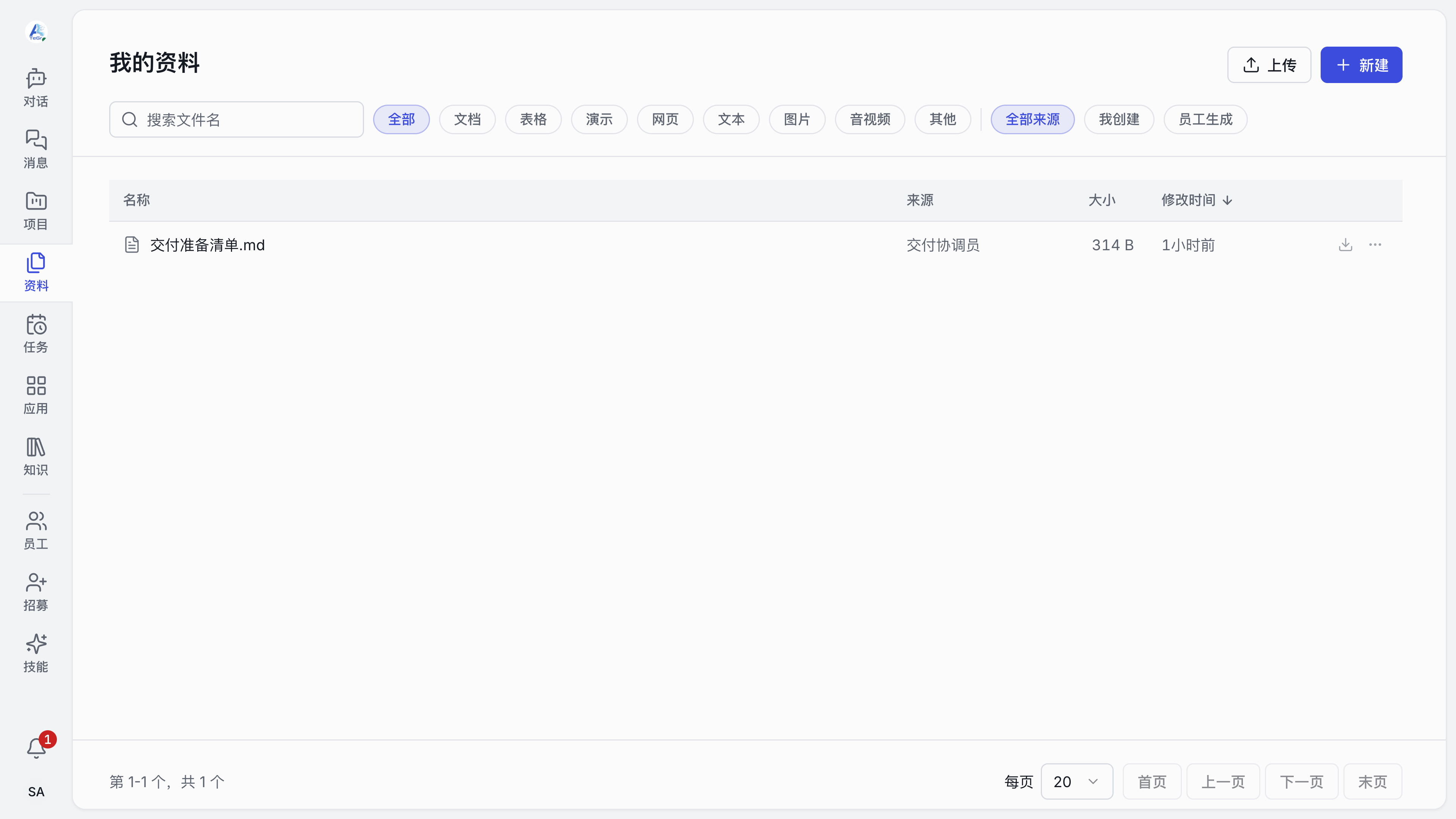
The Library stores files and their versions. Office interfaces let you read or edit their contents. The Knowledge Center stores processed documents. Library files and knowledge documents have separate versions and permissions.
File sources
| Source | Purpose |
|---|---|
| Local upload | Each upload adds a file. Files with the same name are stored separately. |
| Digital employee delivery | Stores a task deliverable. |
| New file | Opens an empty file for editing and saving. |
| Topic attachment | Supplies material to a topic. Attachments in project conversations are not automatically added to the personal Library. |
| Project material | Shares files based on project roles and retains versions and activities. To keep a copy in the personal Library, use the relevant action on the project file. |
Seeing the Library in the menu does not mean every source is authorized. Use file name, content type, size, updated time, and revision to locate a file. The file name is separate from its stable ID.
Editor types
Text, Markdown, Word, presentations, PDFs, and spreadsheets use different viewers or editors. Spreadsheets open in read-only preview on the web and can be edited natively in a supported desktop client.
PDFs provide page previews. They do not support arbitrary edits to the document text.
For saving behavior, see Office Editing and Saving.
File versions
Saving an edited Library file creates a new revision of that file. Uploading another file with the same name creates a separate Library file. Use version history to check or restore saved contents.
Closing before saving, a lost network connection, or a permission change can affect saving. Reopen the file to check what was saved.
A new file opens in an empty editor and appears in the Library after its first save. When restoring a previous version, the currently saved contents remain in version history. Unsaved edits are lost.
Adding a file to a knowledge base submits the selected file and revision for import. Later changes to the Library file do not automatically update the knowledge document, chunks, or index. Check the source version, processing job, and search results separately.
“Add to project” creates a copy in the project and records the source document and version. When the source changes, see Project file origins and versions to review and handle the update.
Permissions and limits
Reading, downloading, editing, deleting, sharing, and adding to a knowledge base are separate actions. The Library entry point does not override file, project, or knowledge base permissions.
Local changes in an external application become platform content only after they are uploaded and saved.
Deleting a Library file removes it and its version history from the list. “Ignore” in the upload queue only dismisses a failure message; it does not delete existing files.
Deleting, overwriting, and restoring affect the current file version and anyone who uses it. Use clear file names for important deliverables and keep earlier versions.