On this page
Digital Employee Configuration
Configure skills and tools to match a digital employee's responsibilities. Search by name, role, or capability, then check the profile before assigning a task.
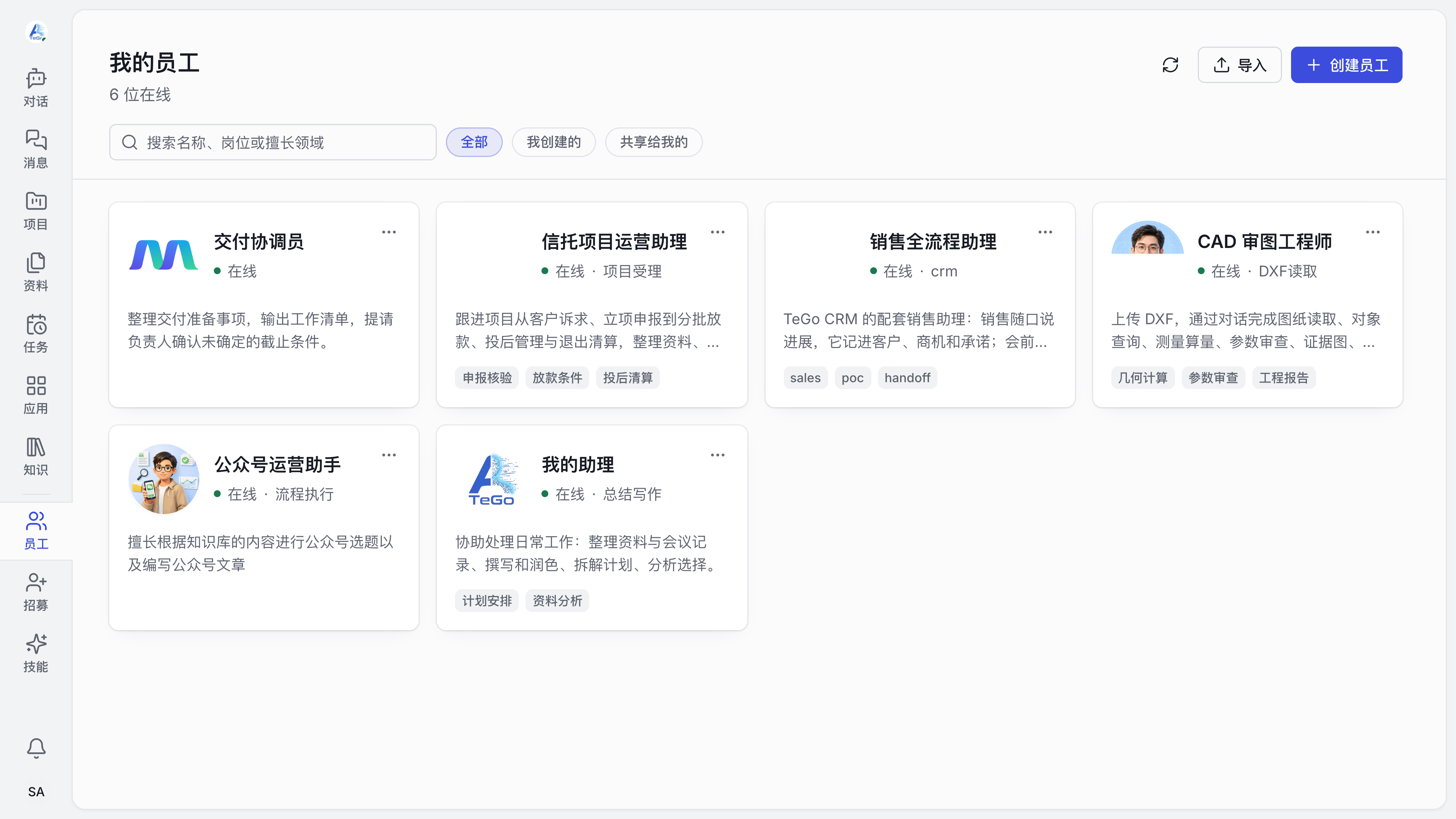
The digital employee list offers All, Created by Me, and Shared with Me. Authorized members can chat. Members with the relevant authorization can also connect their devices.
A digital employee's profile defines responsibilities and capabilities. Its runtime instance executes tasks.
Choose a Digital Employee for the Work
Open Employees in the left sidebar. In My Employees, search by name, role, or area of expertise. From the employee card, choose More → View Details to check responsibilities. Then return to the card to assign work. Before assigning a store's monthly report, for example, check that the digital employee can read the materials and deliver the required file.
Separate permissions govern list visibility, chat, and configuration changes. If an employee card is visible but chat is unavailable, have a manager check chat authorization, whether the digital employee is enabled, and its runtime status. No duplicate employee is needed.
Configure Capabilities
With management access, open More → Employee Console from the employee card to maintain these settings:
| Setting | What it controls |
|---|---|
| Agent | Identity, responsibilities, behavioral rules, and collaboration. |
| Workspace files | Runtime configuration and long-term memory. |
| Skills | Specialized working methods that an Agent can invoke. |
| Models | Models used for chat and specific types of content. |
| Connectors | Whether knowledge bases and external tools are enabled, how they load, and which resources they can access. |
| Plugin management and meeting recognition | Settings for installed runtime plugins and the provider for meeting recognition. |
| Messaging channels | Message entry points and external platform connections. |
| Tasks and heartbeat | Scheduled work and periodic background checks. |
| Nodes and instances | Device connections, execution approvals, and runtime resources. |
| Guardrails and auditing | Content policies, policy testing, and execution tracing. |
Before a digital employee retrieves knowledge, have a manager enable the built-in Knowledge Base connector. Check the connector's scope and the requesting user's knowledge base permissions.
Status Overview in the Employee Console shows instance status and runtime topology. Stopping or restarting an instance affects work in progress.
After updating a digital employee, check Status Overview to see whether configuration applied and runtime connections are available. Once the runtime recovers, run a task that uses the intended model, skill, or connector. Use digital employee templates to create similar roles within the team.
See Employees for day-to-day use, Employee Console for capabilities, and Admin Operations for instances.