On this page
Scheduled Tasks
Use Tasks in the left sidebar to schedule one-time or recurring work for a digital employee and see the result of each run. For example, prepare a weekly progress list at a fixed time using authorized materials.
Set the Schedule and Requirements
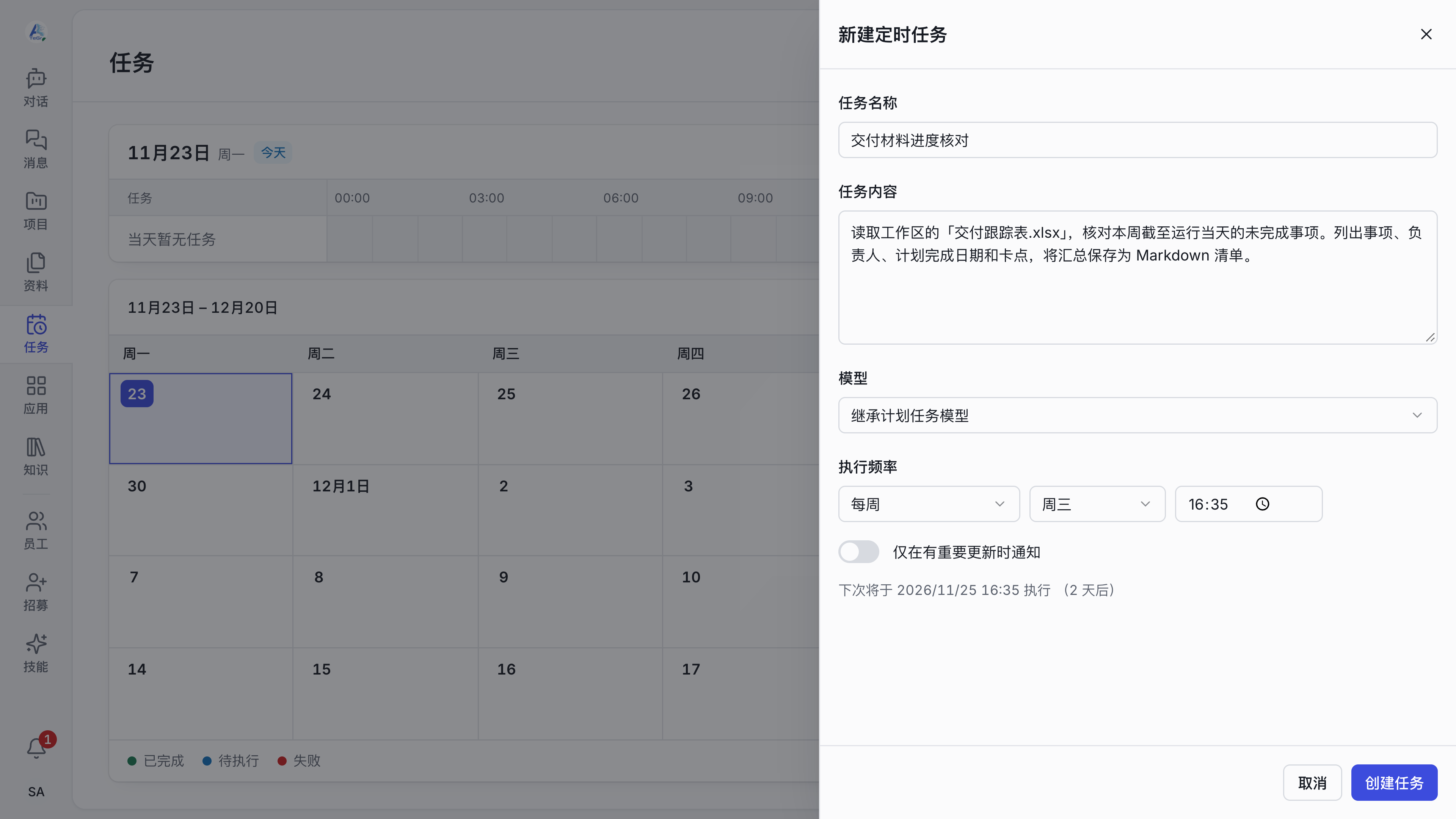
Choose a digital employee that can do the work. Confirm the material location, tools, and permissions. In New Task → Task Content, specify data dates, sources, and output requirements. A task runs independently when due, so do not leave required information in an unsaved draft.
Under Frequency, choose daily, weekly, interval, once at a specified time, or custom cron. Select a model or keep Inherit Scheduled Task Model. You can also enable Notify Only on Important Updates. Confirm the next execution time at the bottom before creating the task.
Check Execution and Results
Find the schedule in the calendar or timeline. Paused schedules and schedules with no next run appear under Unscheduled. Open Run History to check time, status, errors, and results, then verify the actual output and destination.
Run Now creates an additional run. Pause stops future scheduling only. To handle a run in progress, check for a stop or cancel action on that run. Edit the task to change future runs. A reply in the results topic does not change the schedule.
Use Project Items to track owners, progress, and handoffs. See Scheduled Task Operations for scheduling and model rules.